
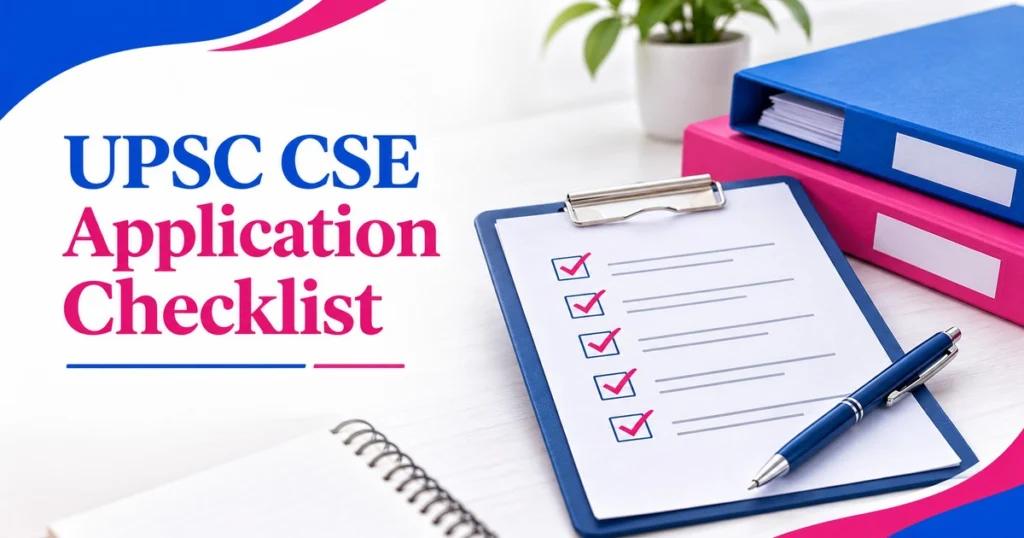
A UPSC Civil Services application can involve several steps before the form reaches the Commission. You may have a registration number and your documents ready, yet still need to select the exam, complete its questions and confirm submission. Start by making a UPSC CSE application checklist that follows the order in which you will use the information. You can then work through each screen without stopping to search for a certificate.
The February 2026 Civil Services Preliminary Examination notice provides a concrete example of the process. It describes a Universal Registration Number (URN), a Common Application Form (CAF) and an examination-specific module. Use the relevant notice for the cycle you plan to enter, since requirements and online steps can change. This checklist is for preparation ahead of an application window. Official UPSC 2026 exam page.
Start with the exam notice and application portal
Download the detailed notice for your exam cycle and read the eligibility and application sections together. Note which date the Commission uses to assess your age, which qualifications it accepts and what proof it needs. Check the application deadline and any later notices that amend it. Keep those dates in your calendar and label them with the exam name and year.
Open the application portal through the Commission’s official instructions. Save the exact title of the exam you are applying for. This helps when similar recruitment names appear in the portal or when a search engine surfaces an older notice. For site coverage of Commission announcements, see UPSC recruitment updates.
Gather the documents before filling the form
| Item | What to check |
|---|---|
| Name and date-of-birth evidence | Use the record specified in your notice and compare the spelling and date with your form. |
| Educational qualification | Check which degree or proof of passing the notice accepts and when you must provide it. |
| Photo ID details | Check that the portal accepts your chosen ID and that the number matches the document. |
| Photo and signature | Follow the current upload and capture instructions, including size, format and clarity. |
| Certificates for claims | Check the issuing authority, format and dates for any reservation or other benefit you claim. |
| Submission records | Make a folder for the final form, application reference and payment record where applicable. |
Open every scan after saving it. Check whether the date, document number and issuing authority are legible at normal zoom. If you resize a file to meet a size limit, open the resized copy as well. Name files by purpose, such as “qualification” or “category certificate,” and keep them in a private folder. This makes it easier to select the intended document at upload time.
Check personal details together on one page before entering them. For example, if your surname appears differently on your school certificate and photo ID, read the notice for the record it uses and consult official support if the instructions leave you unsure. Give yourself time to resolve the issue before the deadline. Use the site’s exam syllabus resources for the study checklist you keep alongside your application notes.
Complete the profile, common form and exam-specific steps
Read each screen heading so you know which part of the process you are completing. The 2026 notice distinguishes the URN profile from the common form and the exam-specific module. Use the profile to enter the information the portal requests there. Then find the Civil Services exam and complete the remaining requirements shown for that cycle, including centre selection and any applicable fee.
The 2026 notice also instructed applicants to upload a photo and capture a live photo in the common form. Its signature instructions specified three signatures in black ink, one below another on plain white paper. Check the current portal guidance before preparing your own images. If live capture applies, test camera permissions and lighting before you sit down to submit. UPSC CSE 2026 notification and application instructions.
Use your own email address and phone number, and keep access to both. If someone helps with scanning or typing, read the full preview yourself and keep your sign-in credentials private. Before paying or entering sensitive details, check how to recognise the warning signs of fake recruitment websites.
Set aside time for a final document check
Make a short list of the claims you entered and pair each with the document that supports it. If you entered a qualification, note the institution name and the date shown on the proof you intend to use. If you entered details for a category claim, check that the uploaded certificate belongs to that claim and that the preview opens the right file.
Keep a copy of the notice next to your checklist so you can look up the exact wording when two documents seem similar. For each item that needs clarification, write down one specific question for official support. A question about whether a provisional certificate is accepted is easier to resolve than a general question about eligibility. After you receive a response, record the date and keep the reply with your application records.
Read the preview one field at a time
Compare the preview with your records in small groups. Start with your name, date of birth and contact details. Move on to qualification and category entries, then look at the uploaded files and the exam-specific selections. Check whether the fee status matches what you expect. Give each screen a moment to load so a blank preview does not escape your attention.
Suppose your profile is complete and the fee has been debited, but the exam application still appears incomplete. Check whether any declaration, upload or final submission step remains. Save the payment reference and follow the official help instructions while the window is open. After submission, keep the acknowledgement and final form where you can retrieve them. When the exam approaches, check admit card updates and follow the Commission’s instructions for your cycle.
Keep your records after submitting
Save a copy of the final application alongside the documents you used. Check that the saved version shows the correct exam cycle and reference. If you later update your personal profile, read the portal’s instructions about how those changes affect applications already submitted. Keep your application reference accessible for later notices and follow exam result updates when the Commission releases them.
Frequently asked questions
Q. Does a URN mean I have applied for UPSC CSE?
Ans. Complete the exam-specific steps and verify that the Civil Services application shows as submitted. Save the final application reference.
Q. Can I use the 2026 notice to apply for another cycle?
Ans. Use it to understand the earlier process. Follow the notification and portal instructions for the cycle you intend to enter.
Q. What if my degree result is still pending?
Ans. Read the current notice’s provisions for candidates awaiting results. Check when proof of passing is required and what documents UPSC accepts.
Q. Do all applicants need a category certificate?
Ans. Prepare evidence for the claims that apply to you. If you claim reservation or another benefit, check the prescribed certificate format and any dates in the current notice.
Q. What should I do if the fee is debited but the application is incomplete?
Ans. Check the payment and application status in the portal. Save your transaction reference and use the official support instructions while the application window is open.